Router and modem troubleshooting: common fixes for slow or dropped connections
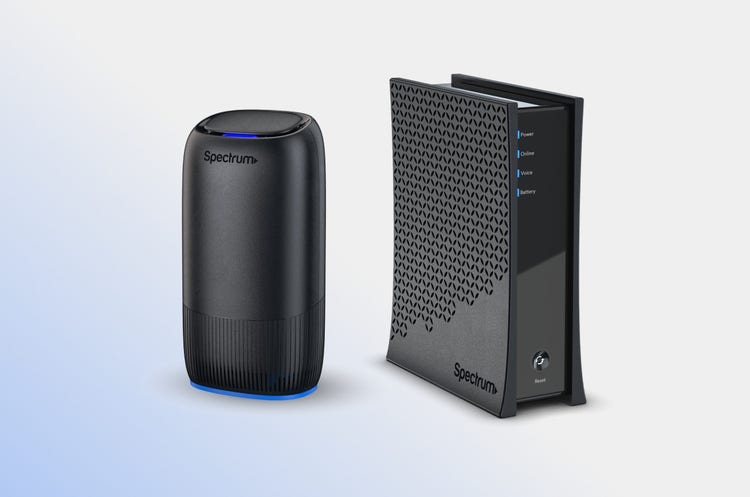
A dropped video call or a page that won't load isn't usually a sign that something is broken. Most connection issues come down to something simple, like a loose cable, too many devices on the network or a signal that just needs a minute to reconnect. This guide walks through how to troubleshoot your modem and router step by step, how to figure out whether the modem, the router, your Internet provider or a specific device is behind the problem, and when it's necessary to contact Spectrum for help.
Start here: the universal restart
Before anything else, power cycle your equipment. This single step resolves the majority of connection issues, and it only takes a few minutes.
- Unplug your modem and router from the power outlet. If you have a combined modem and router unit, unplug that instead.
- Wait at least 30 seconds. A quick unplug and replug doesn't fully clear the device's memory, so the wait matters.
- Plug the modem back in first. Give it two to five minutes for the status lights to stabilize before moving on.
- Plug the router back in and wait another minute or two for it to fully reconnect.
- Check your connection again on a device that was previously having trouble.
If that clears things up, you're done. If not, the steps below will help you narrow down what's actually going on.
Slow speeds vs. a dropped connection
Slow speeds and a dropped connection usually point to different causes, so it helps to know which one you're actually dealing with before you dig further.
A dropped connection, where the Internet cuts out completely and comes back on its own or after a restart, usually points to something at the modem or connection level, like a loose cable, a brief outage or a status light that hasn't stabilized. Start with the status light section below.
Slow speeds, where you're online but pages load slowly or streaming buffers, more often point to the router or wireless side of things, like too many connected devices, band congestion or router placement. The router and WiFi fixes section below is the better starting point.
Either way, the universal restart above is worth trying first, since it resolves a large share of both types of issues.
Checking your modem's status lights
Modem status lights are one of the fastest ways to spot a problem, though the exact colors can vary by device model. As a general rule, a solid, steady light usually means everything is connected and working. A blinking light during startup is normal and should settle within a few minutes. A light that's off, or blinking in a color other than what's typical during startup, usually points to a cable, power or signal issue rather than a problem with the modem itself.
For the exact light pattern on your specific model, check the label on your modem or look up your equipment details in the My Spectrum App. If a light stays in an unusual state for more than 10 to 15 minutes after a full power cycle, that's a good sign to move on to the next steps.
Is it the modem, the router or a specific device?
Once you've ruled out a quick restart, the next step is narrowing down where the problem actually lives. It helps to know the difference between a modem and a router here: your modem connects your home to Spectrum's network, while your router takes that connection and creates the WiFi network your devices actually use. Because they do separate jobs, either one can act up on its own, which is exactly what the steps below help you figure out.
Test the modem on its own
Connect a single device directly to the modem with an ethernet cable, bypassing the router entirely. If that device gets online, the modem and your Internet connection are working, and the issue is likely with the router or your wireless network. If it doesn't, the problem is more likely with the modem or your Internet provider's connection to your home.
Try a different device
If one device is struggling to connect while others on the same network work fine, the issue is probably with that device rather than your modem or router.
Compare wired and wireless
If a device connected by ethernet cable works fine but wireless devices are slow or dropping, the issue is likely with your wireless network specifically, not your Internet connection itself.
Common router and WiFi fixes
If the modem checks out but WiFi is still unreliable, a few common culprits are worth working through.
Placement matters more than people expect
A router tucked in a closet, behind a TV or surrounded by thick walls and metal surfaces will struggle to cover your whole home. Central, open locations, ideally elevated off the floor, tend to perform best. Common sources of interference include microwaves, baby monitors, cordless phones and neighboring WiFi networks, especially in apartments or densely packed neighborhoods where a lot of networks are competing for the same channels.
Band congestion can slow things down
Most routers broadcast on both a 2.4 GHz and a 5 GHz band, sometimes called dual-band or tri-band depending on the router. The 2.4 GHz band reaches farther but is more prone to interference and congestion, while 5 GHz is faster but has a shorter range. If a lot of devices are on the same band, switching some to the other can help.
Too many connected devices can strain the network
Streaming, gaming, smart home devices and video calls all pull bandwidth at the same time. If your home network feels sluggish during peak hours, that's often a capacity issue rather than a hardware problem.
Firmware usually isn't something you need to manage yourself
Spectrum equipment typically receives firmware updates automatically in the background, so outdated firmware is rarely the cause of connection issues on Spectrum-provided routers. If you're using your own third-party router, checking for a firmware update is worth adding to your troubleshooting list.
If you're using WiFi Extenders or a mesh setup to cover a larger home, keep in mind that a weak connection between the router and an Extender can show up as a dead zone even if the router itself is working fine.
Fixing network configuration issues
Sometimes the modem and router are both working fine, but a specific device still can't connect properly. A few network settings are worth checking.
Renew your IP address
On most devices, forgetting the WiFi network and reconnecting will renew its IP address and clear up minor conflicts, especially useful if a device was recently having intermittent dropouts.
Check your DNS settings
If pages are timing out or loading slowly on one device while others are fine, switching that device to a different DNS server can sometimes resolve it. This is a device-level setting, not something that requires touching your modem or router.
Reset the network adapter
If a single computer keeps losing its connection while everything else on the network is stable, resetting that device's network adapter through its network settings often clears up the issue.
Run an ethernet test
Connecting a laptop directly to the router or modem with a cable and comparing that connection to WiFi is one of the fastest ways to tell whether a problem is with your Internet speed overall or with your wireless network specifically.
A quick speed test, either through the My Spectrum App or a speed test website, is also a useful gut check if you suspect your internet speed itself is the issue, especially if you're on a multi-gig plan and expecting speeds well above what you're actually seeing.
When it might be a hardware issue
If you've worked through the steps above and you're still seeing persistent problems, not just an occasional hiccup, it may be worth having your equipment checked rather than continuing to troubleshoot on your own.
A few signs worth a closer look:
- Status lights that never stabilize, even after a full power cycle and several minutes of waiting
- Visible physical damage to a cable, connector or the device itself
- A device that feels unusually hot to the touch
- Connection problems that persist even after confirming there's no outage in your area
In most cases, this isn't about your equipment being unreliable. It usually comes down to something environmental, like a loose connector, an aging cable outside the home or a brief area outage, rather than an issue with the modem or router itself. If it does turn out to be hardware related, Spectrum can run a remote diagnostic on your equipment and ship a new router or modem quickly if one is actually needed, which is a faster path than continuing to troubleshoot a problem that isn't a settings issue. A remote diagnostic typically checks your modem's signal levels, connection stability and how it's communicating with the network, which can usually confirm within minutes whether the issue is on Spectrum's side, a line issue outside your home or the equipment itself.
The bottom line
Most slow or dropped connections come down to something you can fix in a few minutes, not a sign that your equipment needs replacing. Start with a full power cycle, check your status lights and work through whether the issue is with your modem, your router, your wireless network or a single device. If you've been through all of it and the problem persists, reaching out to Spectrum gets you a real diagnosis and, if needed, a quick equipment swap rather than more guesswork on your end.